How to Use Pefoma

Step-by-step guides for the actions you'll use most — from taking your first inventory to fine-tuning the app.

Take Your Inventory

Scan your stock and let Pefoma's AI detect and count it for you.

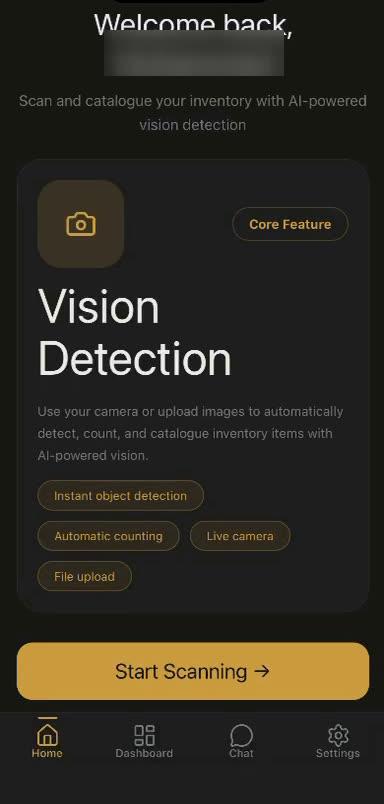
  1. Pefoma home screen with the Start Scanning button From the home screen, tap Start Scanning.
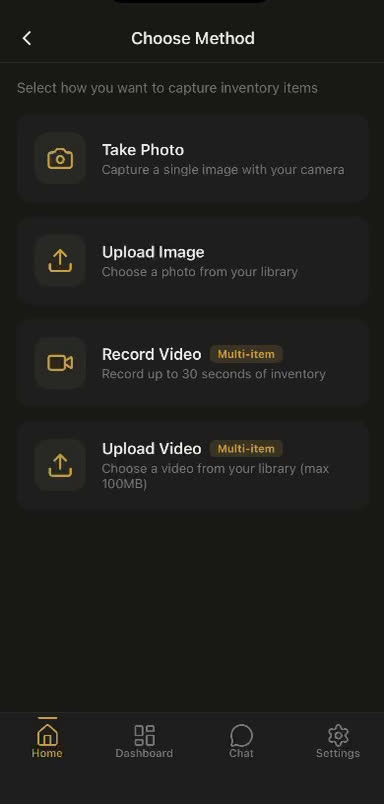
  2. Choose Method screen with Take Photo, Upload Image, Record Video, and Upload Video Choose how to add your stock — Take Photo, Upload Image, or record/upload a video.
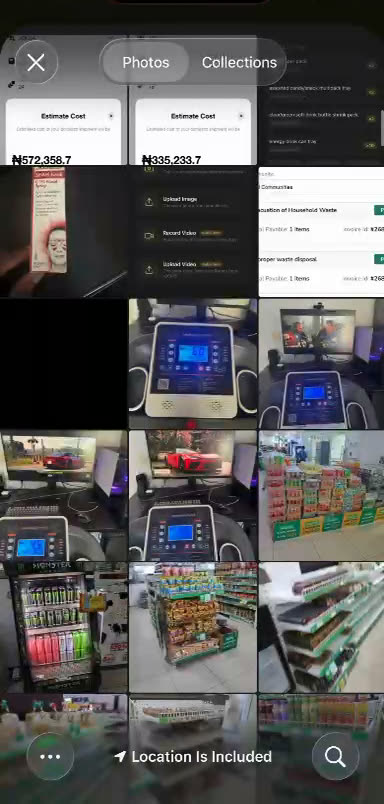
  3. Photo gallery for selecting product images Select the photos of your shelves or products.
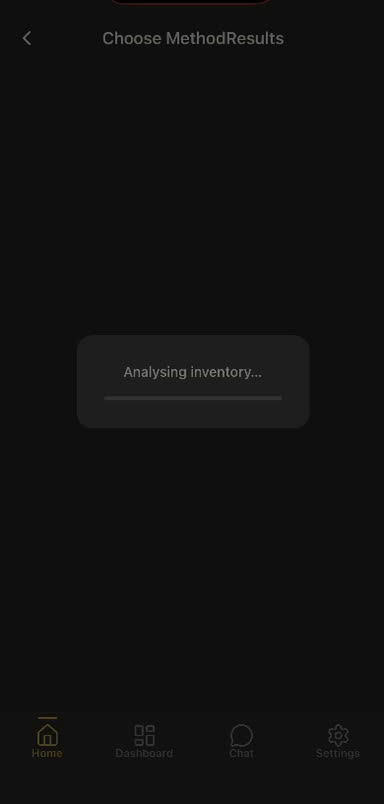
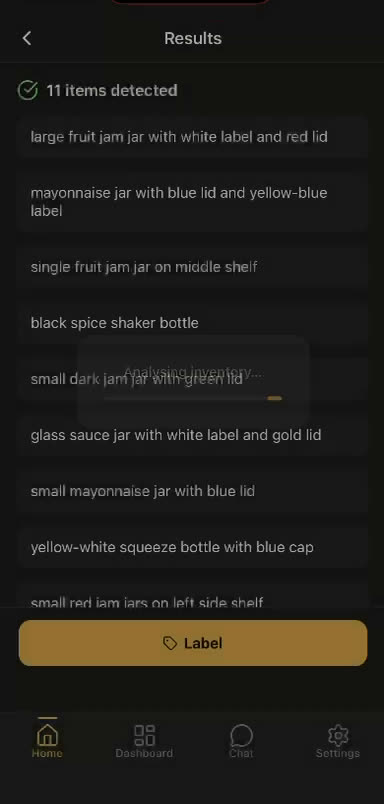
  4. Analyzing inventory loading screen Pefoma's AI analyzes your inventory automatically.
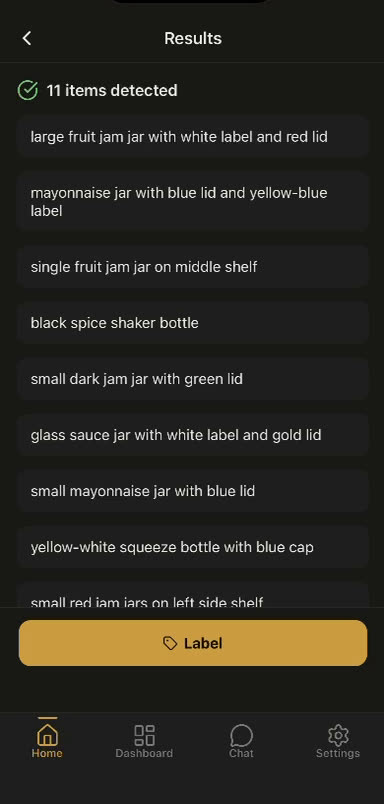
  5. Results screen listing the detected items Review the detected items in your results.
Edit & Save

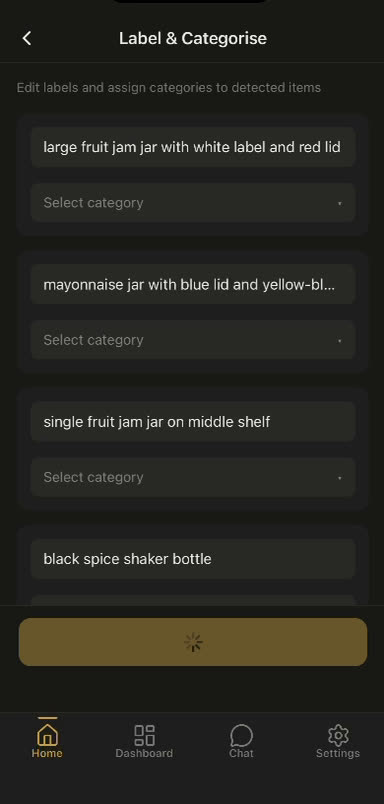
Label and categorize detected items, then save your changes.

  1. Label and Categorize form with a field for each detected item Tap Edit on a session, then set each item's label and category.
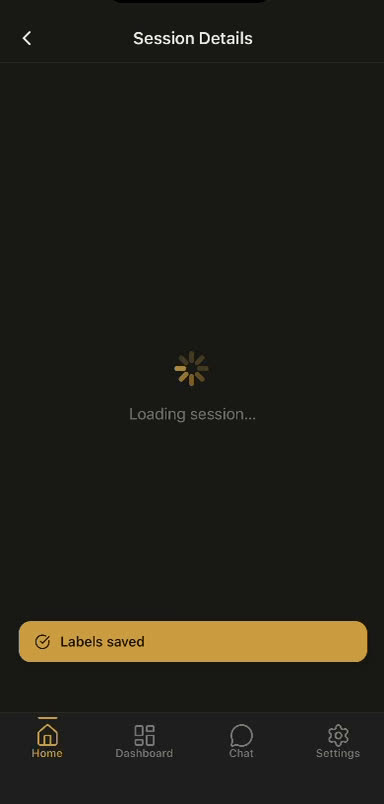
  2. Labels saved confirmation message on the session screen Save — a “Labels saved” confirmation appears.

Complete a Session

Lock in a scan's counts so the session is finalized and ready to share.

  1. Results screen listing the detected items in a scan Open a session to review all of its detected items.
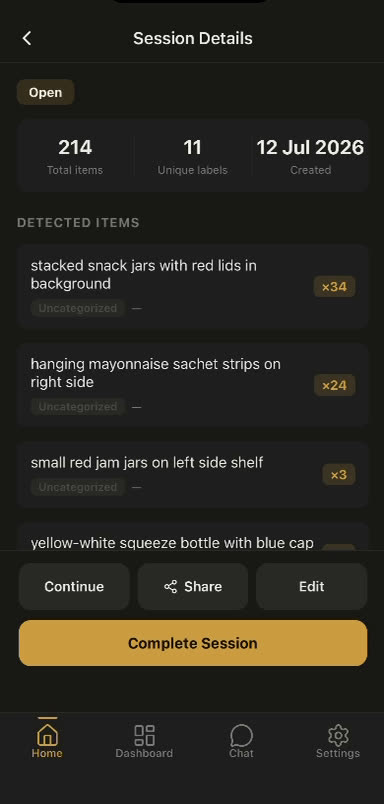
  2. Session details screen with the Complete Session button Tap Complete Session to finalize the count.
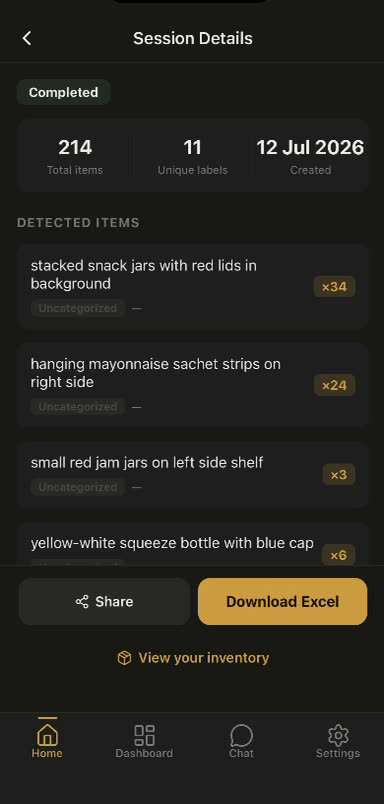
  3. Completed session showing Share and Download Excel options The session is marked Completed — now you can Share or Download Excel.

Continue a Session

Pick up an existing session and keep scanning where you left off.

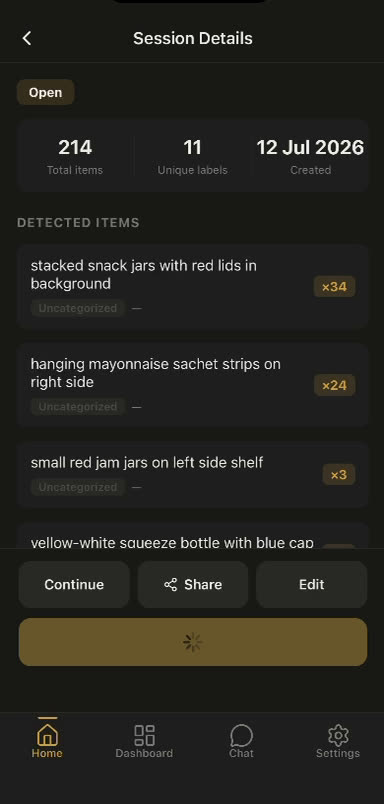
  1. Session details screen with Continue, Share, and Edit buttons Open the session and tap Continue in the bottom bar to keep scanning.

Change Appearance

Switch between light, dark, and automatic themes.

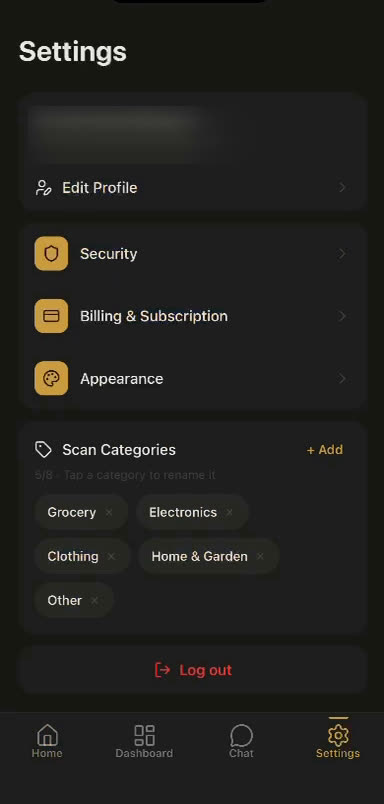
  1. Settings screen with the Appearance option Open Settings and tap Appearance.
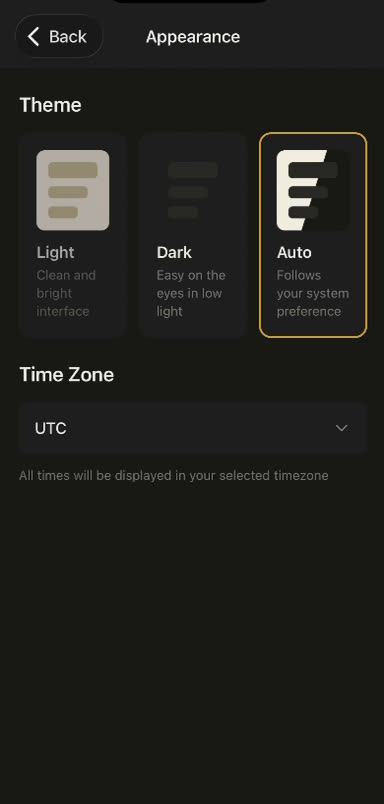
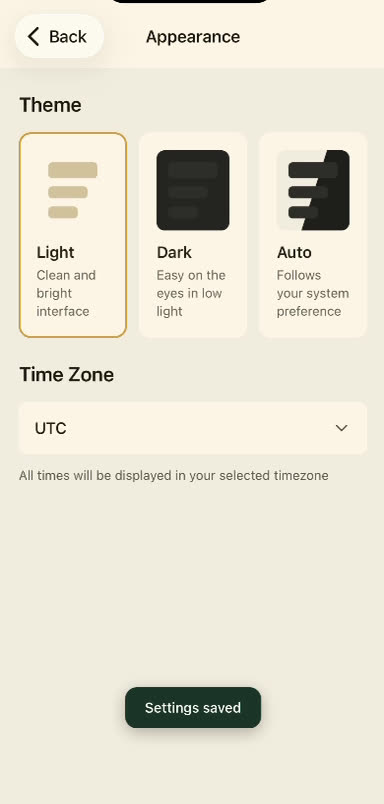
  2. Appearance screen with Light, Dark, and Auto theme options Under Theme, pick Light, Dark, or Auto.
  3. Appearance screen in light theme with a Settings saved confirmation The theme applies instantly — “Settings saved” confirms it.